Getting Started
This guide will introduce you to the tools available in the lsp-devtools suite of tools.
It’s recommended that you install lsp-devtools into a standalone environment managed through tools like pipx or uv
To install using pipx
pipx install lsp-devtools
To install using uv
uv tool install lsp-devtools
The LSP Agent
In order to use most of the tools in lsp-devtools you need to wrap your language server with the LSP Agent.
The agent is a simple program that sits inbetween a language client and the server as shown in the diagram below.
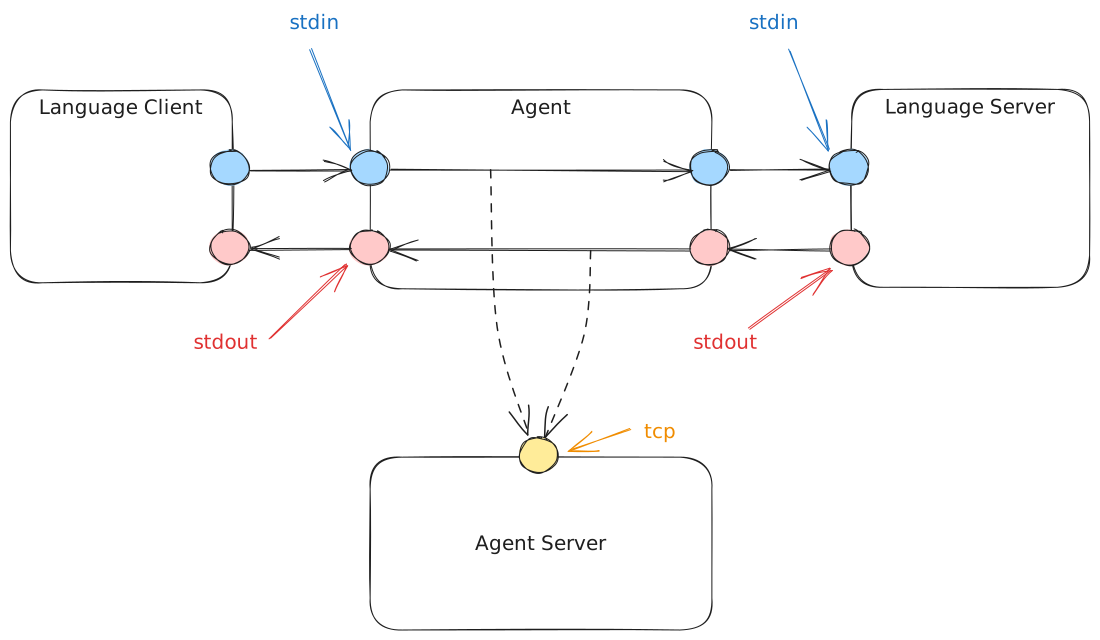
lsp-devtools architecture
The agent acts as a messenger, forwarding messages from the LSP client to the LSP server and vice versa.
It also sends a copy of each message over a local TCP connection to some “Server” application, typically another lsp-devtools command like lsp-devtool record or lsp-devtools inspect.
In general, using lsp-devtools can be broken down into a 3 steps:
Configure your language client to launch your language server via the agent, rather than launching it directly.
Start the server application e.g.
lsp-devtools recordorlsp-devtools inspectStart your language client.
Configuring your client
In order to wrap your language server with the LSP Agent, you need to be able to modify the command your language client uses to start your language server to the following:
lsp-devtools agent -- <server-cmd>
The agent command will interpret anything given after the double dashes (--) to be the command used to invoke your language server.
By default, the agent will attempt to connect to a server application on localhost:8765 but this can be changed using the --host <host> and --port <port> arguments:
lsp-devtools agent --host 127.0.0.1 --port 1234 -- <server-cmd>
Tip
Since the agent only requires your server’s start command, you can use lsp-devtools with language servers written in any language.
As an example, let’s configure
neovim
to launch the
esbonio
language server directly, using the built-in language client and configuration syntax available in nvim v0.11 onwards.
vim.lsp.config.esbonio = {
  cmd = { 'esbonio' },
  root_markers = { 'conf.py' },
  filetypes = { 'rst' },
  settings = {
    esbonio = {
      logging = {
        level = 'debug'
      },
    },
  },
}
vim.lsp.enable({ 'esbonio' })
To update this to launch the esbonio via the lsp-devtools agent, we need only modify the cmd field
  vim.lsp.config.esbonio = {
-   cmd = { "esbonio" },
+   cmd = { "lsp-devtools", "agent", "--", "esbonio" },
    ...
  }
Server Applications
Once you have your client configured, you need to start the application the agent is going to try to connect to.
Currently lsp-devtools provides the following applications
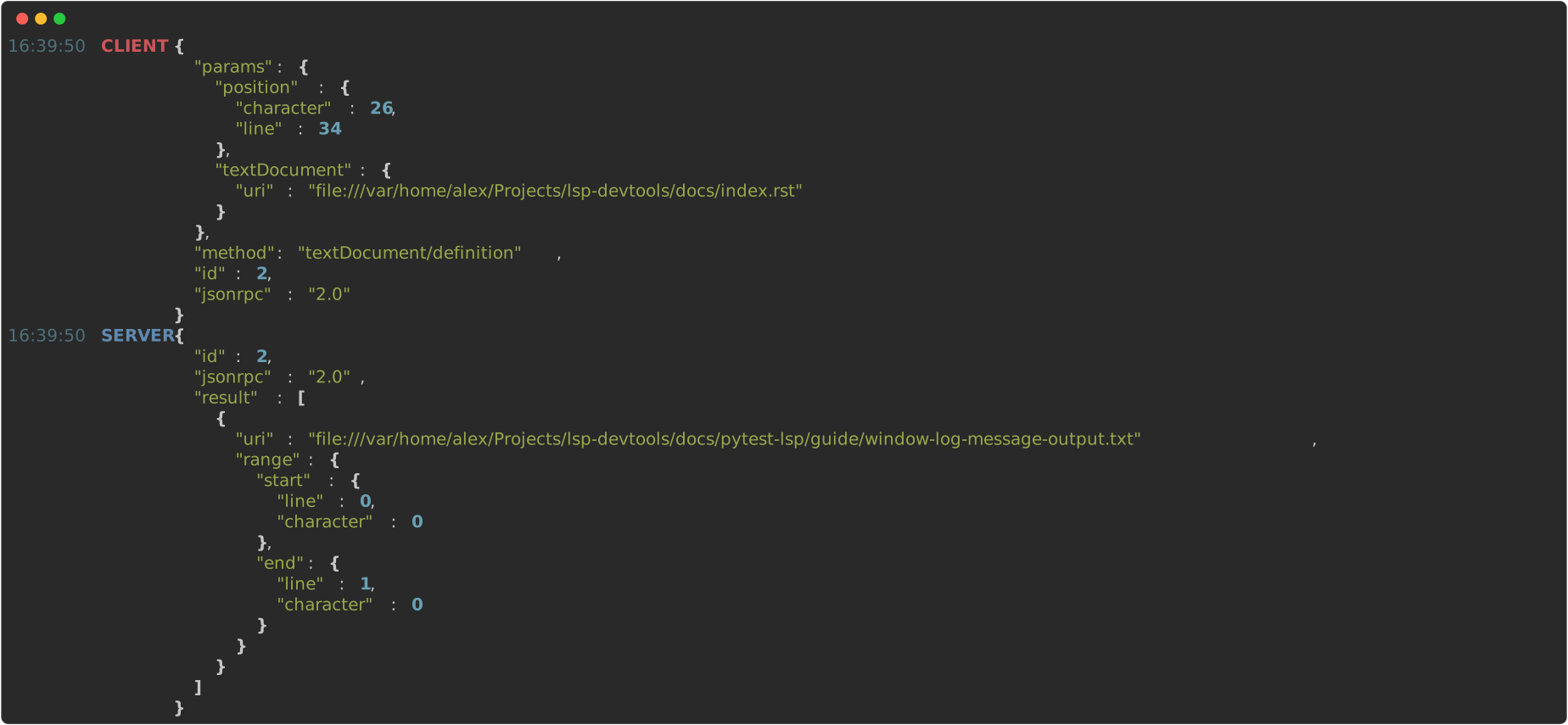
lsp-devtools record- see recording sessions for detailsAs the name suggests, this command supports recording all (or a subset of) messages in a LSP session to a text file or SQLite database. It also supports printing these messages direct to the console.
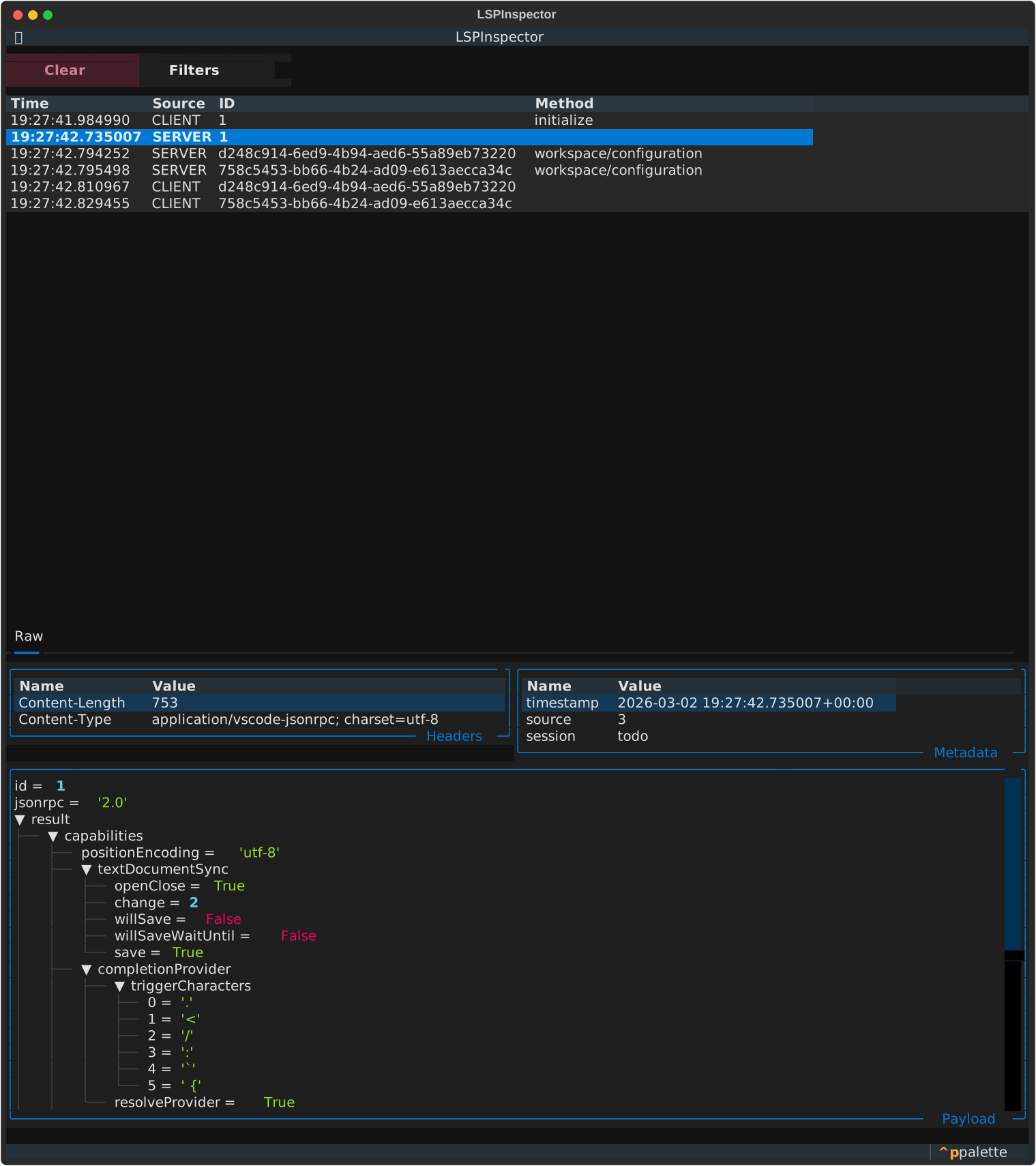
lsp-devtools inspect- see inspecting sessions for detailsAn terminal application with the goal of making it easy to interactively visualise and explore the traffic sent between an LSP client ans server, inspired by the dev tools found in a web browser.
Powered by textual.