Recording Sessions
Important
This guide assumes that you have already configured your client to wrap your language server with the LSP Agent.
The lsp-devtools record command can be used to either record an LSP session to a file, SQLite database or print the received messages direct to the console.
Running the lsp-devtools record command you should see a message like the following:
$ lsp-devtools record
Waiting for connection on localhost:8765...
once the agent connects, the record command will, by default, start printing all LSP messages to the console, with the JSON contents pretty printed.
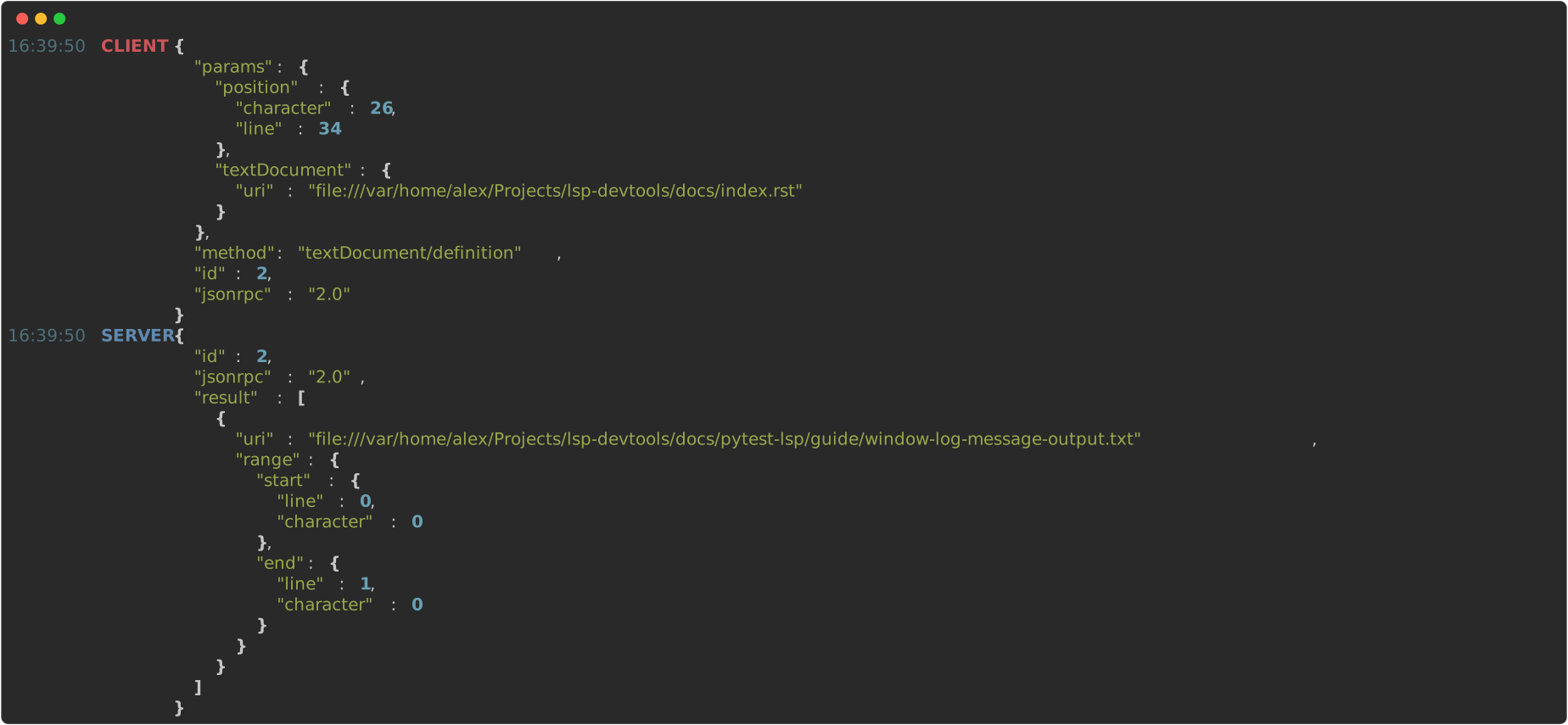
Example Commands
Here are some example usages of the record command that you may find useful.
Capture the client’s capabilities
The following command will save to a JSON file only the client’s info and lsprotocol.types.ClientCapabilities sent during the initialize request - useful for adding clients to pytest-lsp! 😉
lsp-devtools record -f '{{"clientInfo": {message.params.clientInfo:json}, "capabilities": {message.params.capabilities:json}}}' --to-file nvim_v0.11.json
Format and show any window/logMessages
This can be used to replicate the Output log panel in VSCode in editors that do not provide a similar facility.
lsp-devtools record -f "{message.params.type:MessageType}: {message.params.message}"
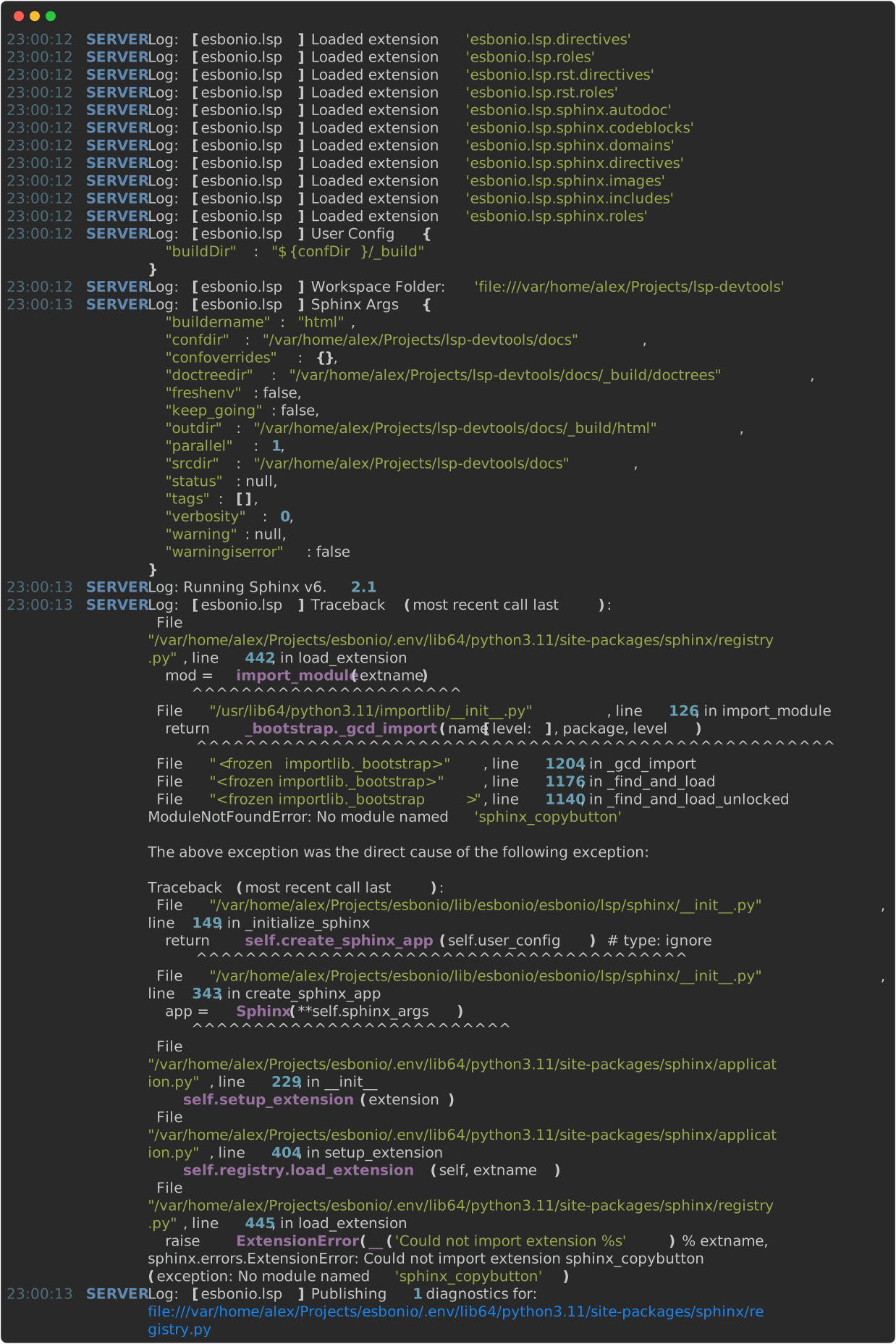
Read on for a comprehensive overview of all the available command line options.
Connection Options
By default, the LSP agent and other commands will attempt to connect to each other on localhost:8765.
The following options can be used to change this behavior
- --bind <host>
The host to bind to.
- -p <port>, --port <port>
The port number to open the connection on.
Capture Mode
By default, the lsp-devtools command will parse the messages sent between client and server, enabling the Filtering Messages functionality documented below.
However there are sitations where capturing the raw data is useful (e.g. when a server is producing invalid messages), the following options are used to select which mode is used
- --capture-rpc
Capture and parse the JSON-RPC messages sent between the client and server (the default).
- --capture-raw
Capture the raw data sent between client and server.
When printing to the console, a simple TUI is used with client and server streams written into separate panes within the application.
Alternate Destinations
As well as printing to console, the record command supports a number of other output destinations.
- --to-file <filename>
Saves all collected messages to a plain text file.
When used with
--capture-rpceach line in the output file represents a complete JSON-RPC message:lsp-devtools record --to-file example.json
See
herefor example of the output produced by this command.When used with
--capture-raw, two files are produced one containing the data sent from the client, the other containing data sent from the server. For example:lsp-devtools record --to-file example.txt
will produce the files
example-CLIENT.txtandexample-SERVER.txt.
- --to-sqlite <filename>
Save messages to a SQLite database:
lsp-devtools record --to-sqlite example.db
Note
This option is not available when using
--capture-rawThis database can then be opened in other tools like datasette, SQLite Browser or even
lsp-devtoolsown LSP Inspector.DB Schema
Here is the schema currently used by
lsp-devtools.Warning
This schema is not stable and may change between
lsp-devtoolsreleases.-- Enable WAL Mode PRAGMA journal_mode=WAL; -- Tables -- We use a single table 'protocol' to store all messages sent between client and server. -- Data within the table is then exposed through a number of SQL views, that parse out the -- details relevant to that view. CREATE TABLE IF NOT EXISTS messages ( metadata JSON, headers JSON, body JSON ); -- Views -- Requests -- CREATE VIEW IF NOT EXISTS requests AS -- SELECT -- client.session, -- client.timestamp, -- (server.timestamp - client.timestamp) * 1000 as duration, -- client.id, -- client.method, -- client.params, -- server.result, -- server.error -- FROM protocol as client -- INNER JOIN protocol as server ON -- client.session = server.session AND -- client.id = server.id AND -- client.params IS NOT NULL AND -- ( -- server.result IS NOT NULL OR -- server.error IS NOT NULL -- ); -- -- Notifications -- CREATE VIEW IF NOT EXISTS notifications AS -- SELECT -- rowid, -- session, -- timestamp, -- source, -- method, -- params -- FROM protocol -- WHERE id is NULL; -- -- Sessions -- CREATE VIEW IF NOT EXISTS sessions AS -- SELECT -- session, -- timestamp, -- json_extract(params, "$.clientInfo.name") as client_name, -- json_extract(params, "$.clientInfo.version") as client_version, -- json_extract(params, "$.rootUri") as root_uri, -- json_extract(params, "$.workspaceFolders") as workspace_folders, -- params, -- result -- FROM requests WHERE method = 'initialize'; -- -- Log Messages -- CREATE VIEW IF NOT EXISTS logMessages AS -- SELECT -- rowid, -- session, -- timestamp, -- json_extract(params, "$.type") as type, -- json_extract(params, "$.message") as message -- FROM protocol -- WHERE method = 'window/logMessage';
- --save-output <filename>
Print to console as normal but additionally, the ouput will be saved into a text file using the export feature of rich’s
Consoleobject:lsp-devtools record --save-output filename.{html,svg,txt}Depending on the file extension used, this will save the output as plain text or rendered as an SVG image or HTML webpage - useful for generating screenshots for your documentation!
Filtering Messages
Note
These options are not availble when using --capture-raw
Once it gets going, the LSP protocol can generate a lot of messages!
To help you focus on the messages you are interested in the record command provides the following options for selecting a subset of messages to show.
- --message-source <source>
The following values are accepted
clientOnly show messages sent from the client
serverOnly show messages sent from the server
both(the default)Show message sent from both client and server
- --include-message-type <type>
Only show messages of the given type. This option can be used more than once to select multiple message types. The following values are accepted
requestShow only JSON-RPC request messages
responseShow only JSON-RPC response messages, matches responses containing either successful results or error codes.
resultShow only JSON-RPC response messages containing successful results
errorShow only JSON-RPC response messages that contain errors.
notificationShow only JSON-RPC notification messages
- --include-method <method>
Only show messages with the given method name. This option can be used more than once to select multiple methods.
- --exclude-message-type <type>
Like
--include-message-type, but omit matches rather than showing them
- --exclude-method <method>
Like
--include-method, but omit matches rather than showing them
If multiple options from this list are used, they will be ANDed together, for example:
lsp-devtools record --message-source client \
                    --include-message-type request \
                    --include-message-type notification
will only show requests or notifications that have been sent by the client.
Formatting messages
Note
These options are not available when using --to-sqlite or --capture-raw.
- -f <format>, --format-message <format>
Set the format string to use when formatting messages. By default, the
recordcommand will simply print the JSON contents of a message however, you can supply a custom format string to use instead.Tip
Format strings are also a powerful filtering mechanism! - By default, any messages that do not fit with the supplied format will not be shown, use the
--keep-unformattedoption to change thisFormat strings use the following syntax
Similar to Python’s Format string syntax a pair of braces (
{}) denote a placeholder where a value can be inserted. Inside the braces you can then select and the message field you want to be inserted using a dot-separated syntax that should feel familiar if you’ve ever used jq:Message: { "method": "textDocument/completion", "params": { "position": {"line": 1, "character": 2}, "textDocument": {"uri": "file:///path/to/file.txt"}, } } Format String: "{message.params.position.line}:{message.params.position.character}" Result: 1:2The colon symbol (
:) can be used to pass the selected field to a formatter e.g.Position:Message: { "method": "textDocument/completion", "params": { "position": {"line": 1, "character": 2}, "textDocument": {"uri": "file:///path/to/file.txt"}, } } Format String: "{message.params.position:Position}" Result: 1:2See Formatters for details on all available formatters. Fields that contain an array of items can be accessed with square brackets (
[]), by default items in an array will be separated by newlines when formatted:Message: { "result": { "items": [{"label": "one"}, {"label": "two"}, {"label": "three"}] } } Format String: "{message.result.items[:].label}" Result: one two threeThe brackets also support Python’s standard list indexing rules:
Message:
{
  "result": {
    "items": [{"label": "one"}, {"label": "two"}, {"label": "three"}]
  }
}

Format String:                         Result:
"{message.result.items[0].label}"      one
"{message.result.items[-1].label}"     three
"{message.result.items[0:2].label}"    "one\ntwo"
- --keep-unformatted
By default, the
lsp-devtools recordcommand will omit any messages which fail to format using any of the given format strings. When given, this option ensures that any unformatted messages are still included in the output.
Formatters
lsp-devtools provides the following formatters
json(default)Renders objects as “pretty” JSON, equivalent to
json.dumps(obj, indent=2)jsonlRenders objects as JSON with no additional formatting on a single line, equivalent to
json.dumps(obj)position{"line": 1, "character": 2}will be rendered as1:2range{"start": {"line": 1, "character": 2}, "end": {"line": 3, "character": 4}}will be rendered as1:2-3:4
Additionally, any enum type provided by the lsprotocol package can be used as a formatter, where numbers will be replaced with their corresponding name, for example:
Format String:
"{.type|MessageType}"

Value:          Result:
{"type": 1}     Error
{"type": 2}     Warning
{"type": 3}     Info
{"type": 4}     Log